Why do GA4 events fire twice?
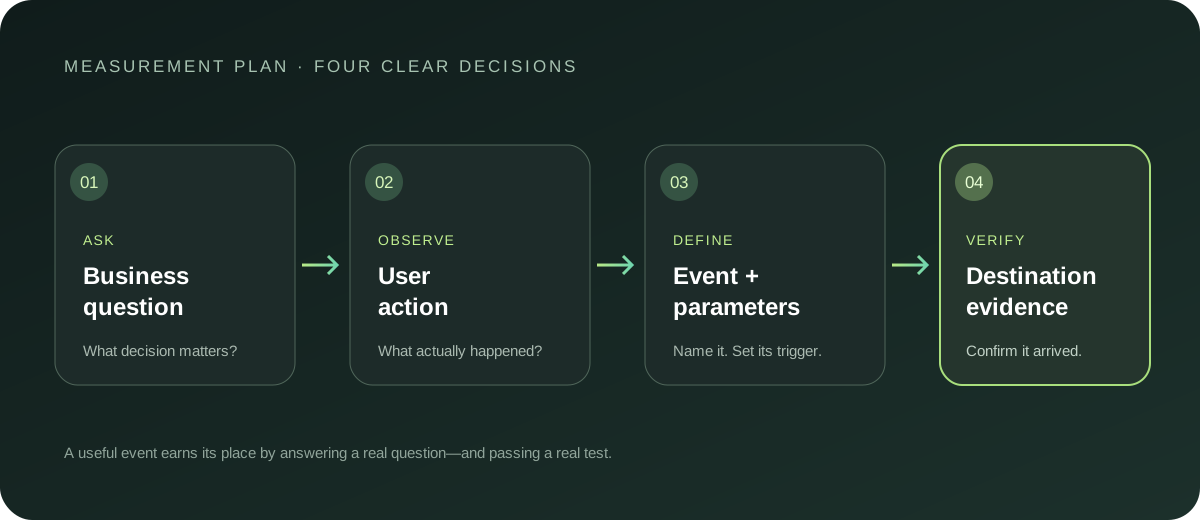
A GA4 event appearing twice can inflate conversions, create noisy reports and make a customer journey look more active than it was. The event name alone rarely tells you where the duplicate came from.
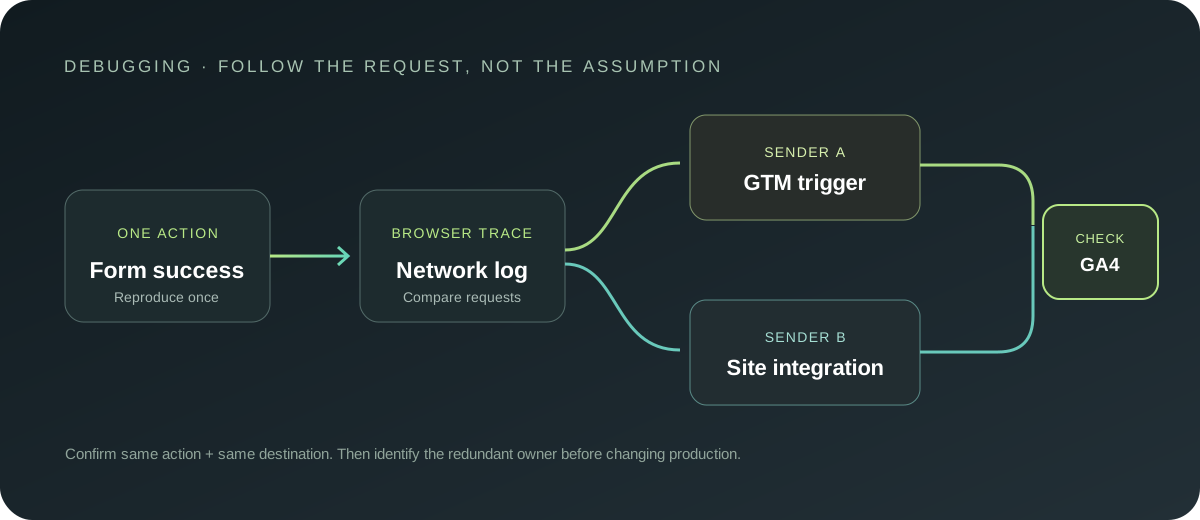
Common causes include the same event being sent by both a Google Tag Manager (GTM) container and a hard-coded Google tag, two GTM triggers matching one interaction, a form handler attached more than once, or a single-page application emitting an event on both a click and a route change.
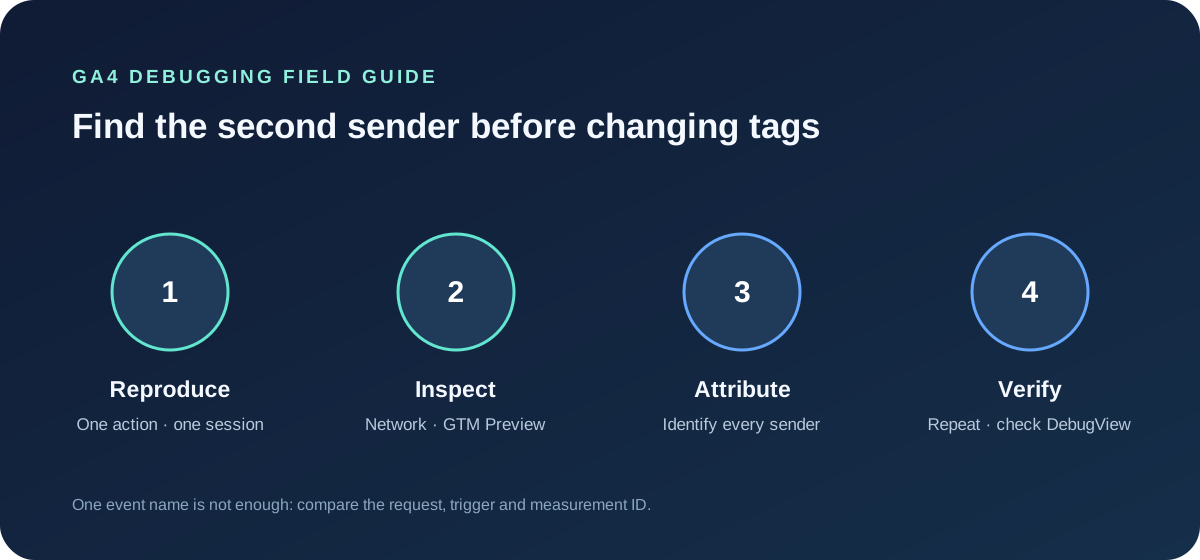
The reliable fix is to trace one user action from the browser to the GA4 request, identify every sender, and remove or correct the redundant source. Filtering duplicate rows in a report only hides the symptom.
1. Reproduce one event on purpose
Start with one page, one action and one browser session. Write down what should happen—for example, one generate_lead event after a successful form submission. Avoid testing several pages or events at once; that makes cause and effect harder to see.
Open Chrome Developer Tools before repeating the action. In the Network panel, enable Preserve log, clear existing requests, and filter for collect. GA4 requests commonly include g/collect; inspect the request payload for the event name (en) and measurement ID (tid). A request is evidence that a sender tried to transmit an event. It does not, by itself, prove that GA4 processed it.
Do not submit real customer information just to test analytics. If you save a screenshot or HAR file, remove or mask personal data first.
2. Find which implementation sent each request
If the site uses GTM, open Preview in Tag Assistant and connect it to the page. Repeat the action once. In the event timeline, select the interaction and check Tags Fired and Tags Not Fired.
Look for two GA4 event tags responding to the same interaction. Check whether a Google tag is configured in the page as well as in GTM. A common pattern is one direct Google tag call plus a GTM event tag, each sending the same event to the same measurement ID.
Without GTM, inspect the code and installed plugins for event listeners, form integrations and direct Google tag calls. For a single-page application, check whether the event is sent on both the button click and the later route or confirmation-state change.
Write down each owner in plain language. For example:
- Successful enquiry form: the GTM event tag fires on the confirmed success callback and sends to the intended measurement ID.
- Purchase confirmation: the ecommerce integration fires on the completed order and sends to the intended measurement ID.
Keep one intended owner per event and destination. If two tools deliberately send to different measurement IDs, that is not automatically a duplicate; verify which property is meant to receive the event.
3. Compare the browser with DebugView
Open Admin → DebugView in the relevant GA4 property while the test session is active. DebugView can help confirm the event name and parameters received by that property. Check that you are looking at the same property and measurement ID as the browser request.
If the browser shows two matching requests but DebugView shows one event, the difference may involve request processing, consent, network conditions or how the requests are represented. If DebugView shows two events, compare timestamps and parameters to see whether they arrived from the same action.
Do not use a conversion count alone to diagnose duplicate firing. Attribution, reporting identity, processing delay and event configuration can all affect what appears in reports. First establish what the browser sent and what the intended property received.
4. Fix the source, then repeat the same test
Choose the canonical owner for the event. Remove the redundant tag or direct call, or narrow its trigger so it fires only for the intended condition. For a form, track confirmed success rather than both a submit-button click and the successful submission. For a purchase, use the completed transaction signal and a stable transaction ID.
Then publish the change through your normal review process. Repeat the exact same action with the same browser procedure. Confirm there is one intended request for the correct measurement ID, the expected event name and useful parameters, and a corresponding event in DebugView.
Test important variations too: validation error, failed submission, reload of the confirmation page, browser back/forward, and single-page app navigation. A fix that works only on the happy path may still fire twice in real use.
A short GA4 duplicate-event checklist
- Reproduce one interaction with Network logging enabled.
- Match requests by event name and measurement ID.
- Use GTM Preview to see which tags fire for that interaction.
- Check for parallel sources such as hard-coded tags, CMS plugins and app code.
- Separate a click from a confirmed outcome such as a successful form submission.
- Make one change, publish it, and repeat the same test.
- Check negative paths and reload/navigation behaviour.
- Document event ownership so a later release does not reintroduce a second sender.
When should you investigate further?
If only one event is duplicated, focus on the page or integration that owns it. If many unrelated events suddenly duplicate, review the most recent GTM publish, tag-manager container changes, plugin updates and site releases. If the browser sends one request but a downstream report shows more activity, investigate the reporting or attribution path separately from tag firing.
Keep a record of the before-and-after request evidence, the change made and the test result. That gives analysts and developers a shared explanation of what changed—and makes regressions easier to catch.
This guide describes a diagnostic workflow. Interfaces and request details can change, so confirm behaviour in your own property and current browser tools.