First prove that the same action was counted twice
A GA4 report with a higher event count than expected is a reason to investigate, not proof that two tags fired. Confirm the same user action, event name, property and time window are involved. Check filters, reporting identity, internal traffic settings, repeated user actions and timezone boundaries before changing the implementation.
When the browser actually sends the same event more than once for a single action, the cause is often overlapping implementations or a trigger that fires more than intended. The safe fix starts with evidence about who sent each request and why.
1. Reproduce one controlled action
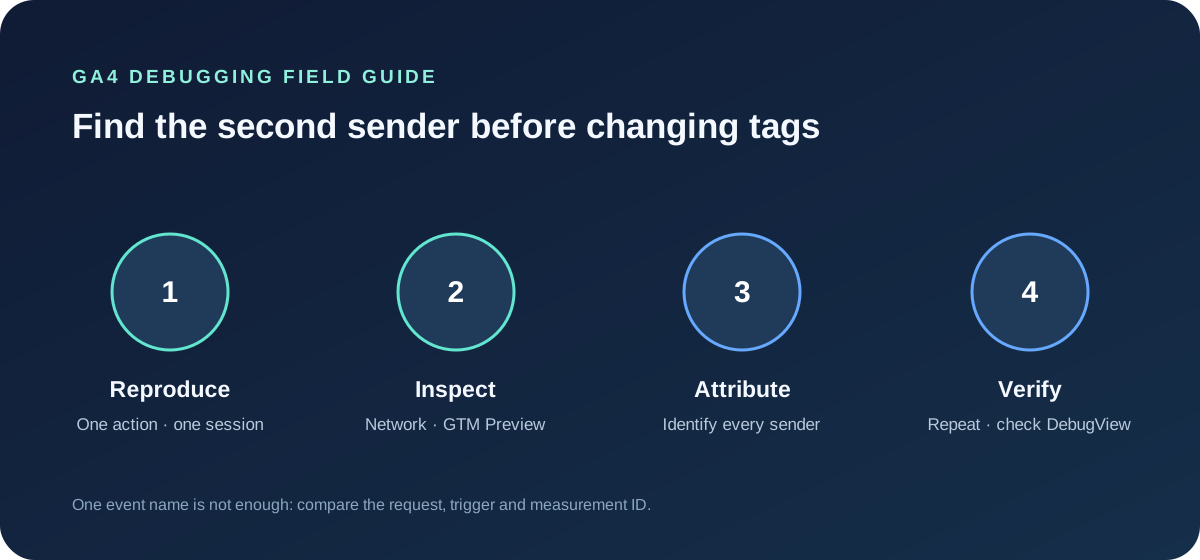
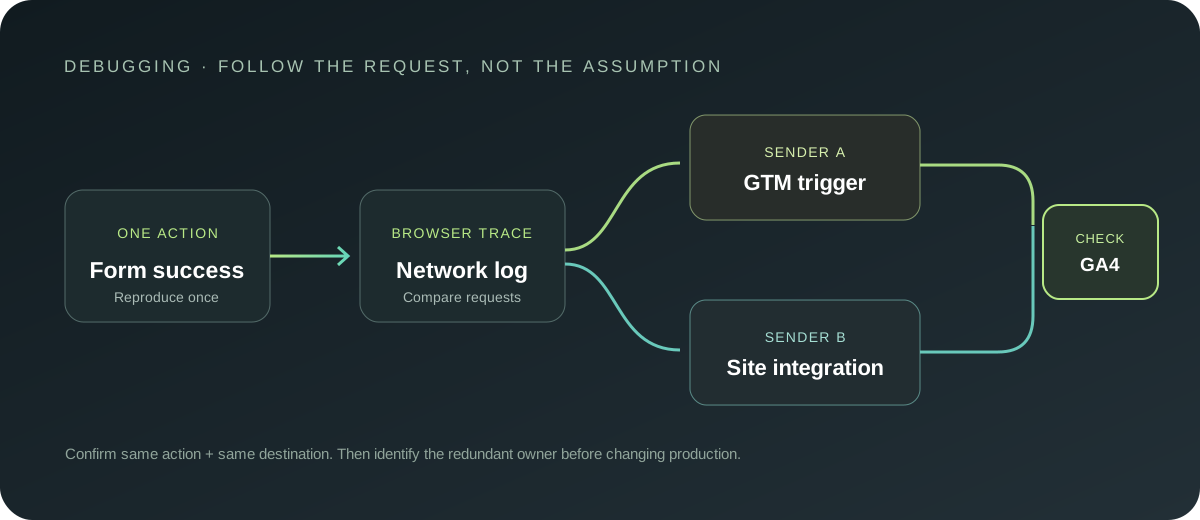
Use a test page or staging environment where possible. Open browser developer tools, preserve the network log, and perform the action once. Note the time, page, consent state and expected event. Avoid clicking repeatedly while debugging; repeated test actions make the evidence harder to interpret.
If you use Google Tag Manager, preview the container and inspect which tags fired for the action. Use GA4 DebugView or other current Google debugging tools to compare the event received by the property. A single view can be incomplete, so correlate the trigger timeline with outgoing requests.
2. Trace every possible sender
List the places that could send the event:
- Google Tag Manager web container;
- a GA4 `gtag.js` installation in the page or site template;
- a CMS or ecommerce integration;
- another analytics plugin or marketing platform;
- a server-side or Measurement Protocol sender;
- a second GTM container or duplicated installation snippet.
Then compare each outgoing request. Look at the measurement destination, event name, timing, page context and parameters. Two requests can look similar while going to different properties; one event can also legitimately be sent to more than one destination. Decide what “duplicate” means for the reporting question before removing anything.
3. Check common implementation causes
Two implementations own the same event. A page-level GA4 snippet and a GTM GA4 configuration can both send page views or custom events. Inspect the actual request stream and remove or disable only the redundant owner after confirming which setup should remain.
A trigger fires twice. Check whether the trigger is attached to both a click and a success callback, whether a history-change rule repeats, or whether a form listener survives a page transition. A click is not the same as a successful submission. Base completion events on confirmed success where possible.
The interaction has multiple event bindings. Single-page applications may re-run initialisation on navigation, and custom scripts can register the same listener more than once. Check the lifecycle and deployed markup rather than assuming one visible button means one listener.
A second container or plugin is active. Inspect rendered page source and network requests. CMS integrations and consent tools can inject tags outside the GTM workspace you expected to own tracking.
Testing is mixed with live traffic. Debug and internal traffic can affect views if filtering is not configured as expected. Separate controlled QA from business reporting and document the relevant filters.
4. Check consent and sequencing
Consent updates, tag sequencing and delayed loading can change when a tag becomes eligible to fire. Compare the same action under the expected consent state and inspect the destination requests. Do not “fix” duplicate counts by bypassing an explicit visitor choice or removing a required consent rule. Confirm the intended policy with the team responsible for privacy and consent configuration.
5. Change one source, then retest
Once evidence identifies the redundant sender or trigger, make the smallest change that restores one clear owner for the event. Retest the same action, plus a failed or interrupted path where relevant. Verify both that the duplicate request disappeared and that the intended event still reaches the intended property with its required parameters.
- Two requests to the same property for one action: compare tag or container ownership and trigger conditions.
- One request on click and another on success: keep the event that matches the agreed measurement definition.
- Duplicate only after in-app navigation: inspect route-change initialisation and event-listener lifecycle.
- Counts differ but only one request is visible: compare property, filters, reporting identity, date and time, and repeated actions.
- Event changes with consent state: review consent sequencing and the documented delivery policy.
Keep a record of the resolution
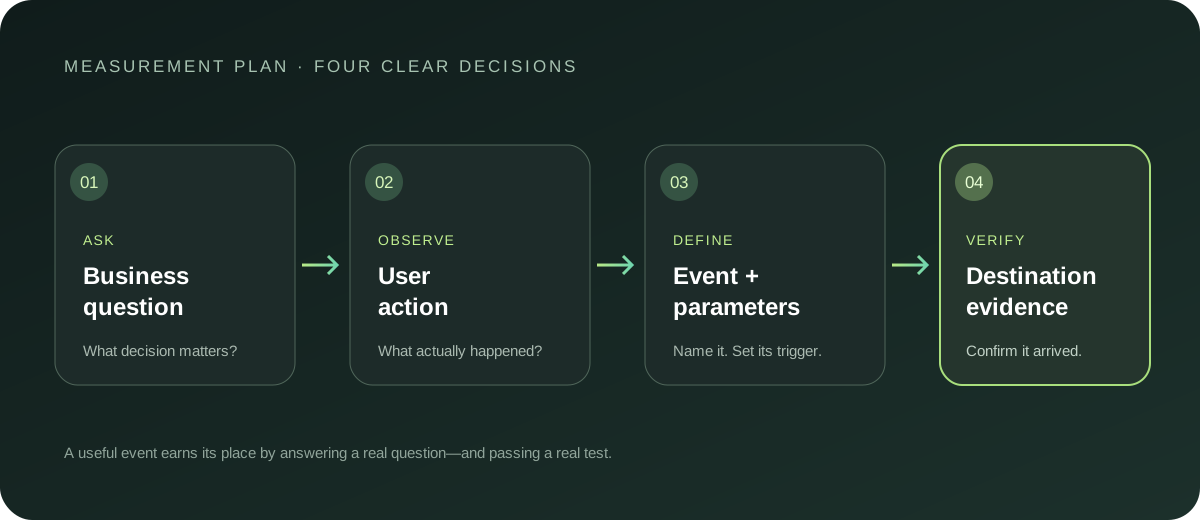
For the event, record its intended owner, trigger, destination, the evidence you reviewed and the change made. This makes future GTM edits less likely to reintroduce the overlap. Analytics Capture’s implementation health and diagnostics can help teams keep observed issues and measurement decisions connected; verify any suspected duplicate against browser and destination evidence before publishing a fix.
Duplicate tracking is usually a coordination problem as much as a tag problem. Give each event one documented meaning, one intentional owner per destination, and a repeatable test.